Free Online File Compressor vs Desktop Software
Privacy, speed, batch work and format support compared for browser tools and installed programs.
Read guideFile reducer video compression happens entirely inside your browser tab, which surprises many people who expect videos to need heavy desktop software or a remote server. Modern browsers already include video decoders, a drawing surface and a built-in recorder, and together these can produce a smaller copy of a clip on your own device.
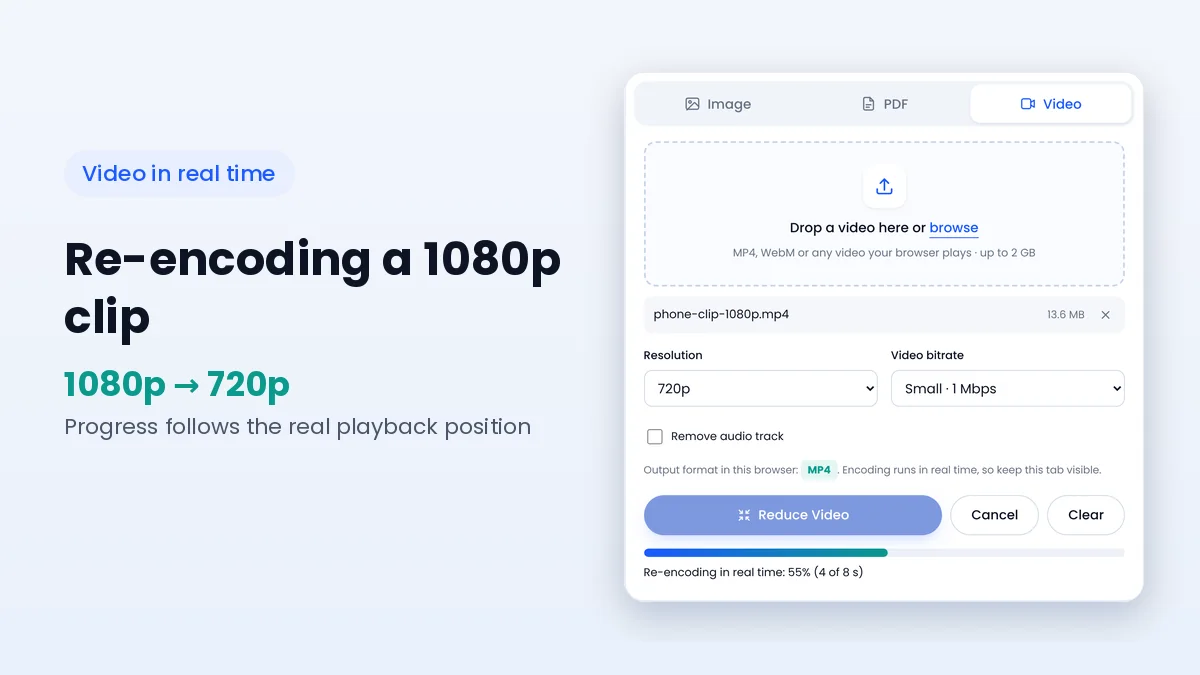
The sections below follow a clip from the moment you press Reduce Video to the finished download, and explain how resolution, bitrate and your browser shape the result in the video compressor.
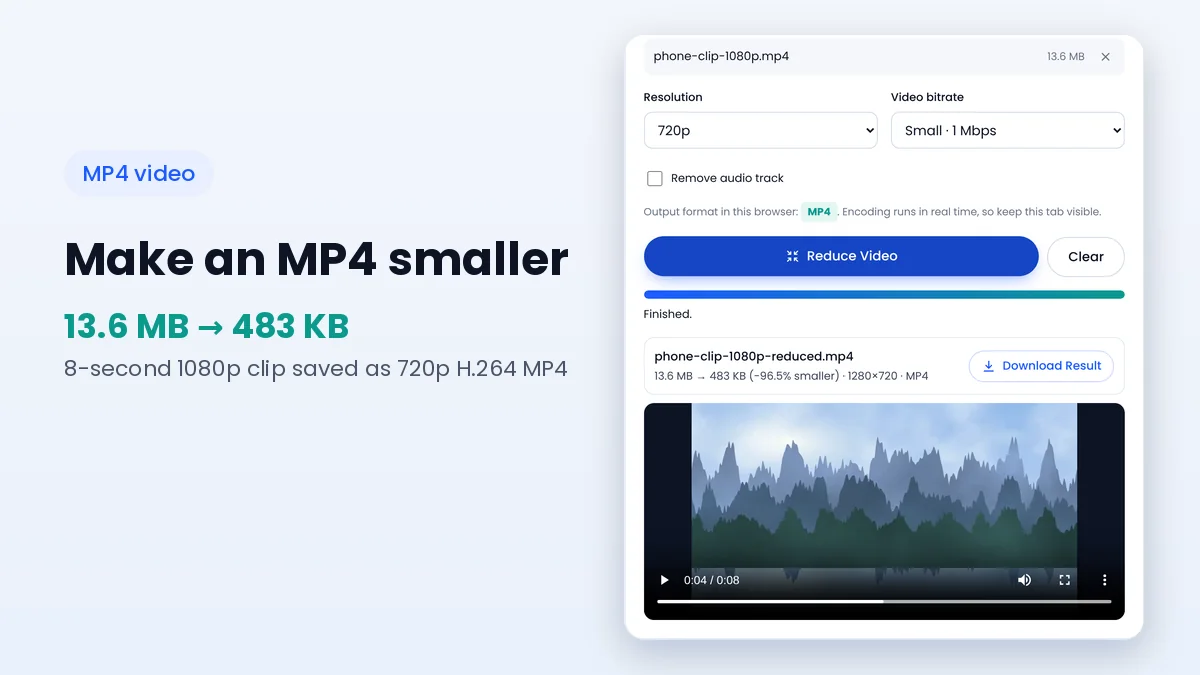
A video is a long series of images plus sound. Its size depends mostly on bitrate, the amount of data spent on each second, multiplied by the running time. Phones and screen recorders often use a high bitrate to keep motion smooth and detailed, so even a one-minute clip can reach tens or hundreds of megabytes.
Resolution matters too. A 1080p frame has 2.25 times as many pixels as a 720p frame, and 4K has four times as many as 1080p. More pixels need more data to look clean, which is why lowering resolution and bitrate together gives the largest savings.
The compressor loads your clip into a hidden video player and checks that the browser can decode it. It then creates a drawing canvas at the chosen resolution and copies each frame onto it while the video plays. The audio is routed through the Web Audio API so it can be recorded without playing through your speakers.
The browser's MediaRecorder API records the canvas and the audio together, using the bitrate you selected. When playback reaches the end, the recording stops and the finished file appears with its new size, resolution, a preview player and a download button.
MediaRecorder records what is being played, at normal playback speed. Speeding up playback would also speed up the recorded video, so the clip has to play through once at its natural pace. A 45-second video therefore takes roughly 45 seconds, and the progress bar shows the real position in the clip.
Browsers slow down tabs that are hidden behind other windows to save power. Keeping the File Reducer tab visible while encoding avoids dropped frames and keeps the output smooth.
The resolution menu limits the shorter side of the frame, so it works for both landscape and portrait clips. The bitrate presets set the target data rate for the picture; audio is recorded at about 96 kbps when kept.
| Preset | Video bitrate | Approx. size per minute | Good pairing |
|---|---|---|---|
| High | 4 Mbps | About 31 MB | 1080p with lots of motion |
| Medium | 2 Mbps | About 16 MB | 1080p or 720p |
| Small | 1 Mbps | About 8 MB | 720p, the default choice |
| Smallest | 0.5 Mbps | About 4.5 MB | 480p or 360p |
These sizes come from bitrate × duration including audio, so treat them as estimates. Encoders can land slightly above or below the target, and very simple scenes may use less data.
The output format depends on which formats your browser can record. Recent versions of Chrome, Edge and Safari can record MP4, while other browsers record WebM with VP8 or VP9 video. The Video tab shows the format your browser will use before you start, so there are no surprises.
Both formats play in current browsers and most modern players. If a website or app accepts only MP4 and your browser produces WebM, run the compression in a browser that records MP4 instead.
The compressor can only read codecs your browser supports. Some MOV files and HEVC recordings from phones may not decode in every browser, and the tool shows an error instead of a broken result. Converting those clips to MP4 with H.264 first, or trying another browser, usually solves it.
Some players do not show the total duration of WebM recordings until they finish loading, because the browser writes the file as a live stream. The video still plays normally from start to end.
When audio is kept, the original soundtrack is captured through the Web Audio API at the same time as the frames, so sound and picture stay in sync. The audio is re-encoded at about 96 kbps, which is clear enough for speech and most music in shared clips while adding only around 0.7 MB per minute.
Ticking Remove audio skips the soundtrack entirely. This is useful for silent screen captures, background loops for websites or clips where the sound is not needed, and it removes the audio data from the final size.
The finished clip appears in a preview player directly under the result line. Scrub to the busiest part of the video, such as fast motion or detailed backgrounds, and watch a few seconds there. If the picture looks blocky, run the original again with a higher bitrate preset or a lower resolution that gives each pixel more data.
Also confirm that the sound plays when audio was kept, and that the clip ends where the original ends. Once everything looks right, download the file and keep the original until the reduced copy has been received.
File reducer video compression combines three browser features: a video decoder, a canvas for resizing frames and MediaRecorder for writing a new file at a lower bitrate. Because the clip plays once in real time, the work stays on your device and the quality is shaped by the resolution and bitrate you pick.
Start with 720p and the Small preset in the video tab, then adjust if the result needs more detail. The MP4 size guide shows how to estimate a final size before you begin.
Keep learning how to make images, PDFs and videos smaller.
Privacy, speed, batch work and format support compared for browser tools and installed programs.
Read guideEstimate the final size from bitrate and length, then pick settings that fit your limit.
Read guideMake design exports lighter for clients, websites and social posts while keeping text sharp.
Read guide